Stripe Connect Instructions
Step 1: Log in to your Sitterwise dashboard and click “Register with Stripe”
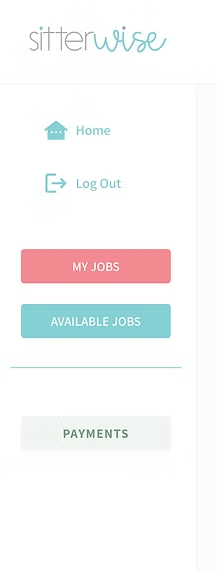
If on a desktop, click “Payments” first
Scroll down and click on the pink “Register with Stripe” button
Step 2: Follow the Stripe Instructions
Enter the email address you use to log in to your Sitterwise account
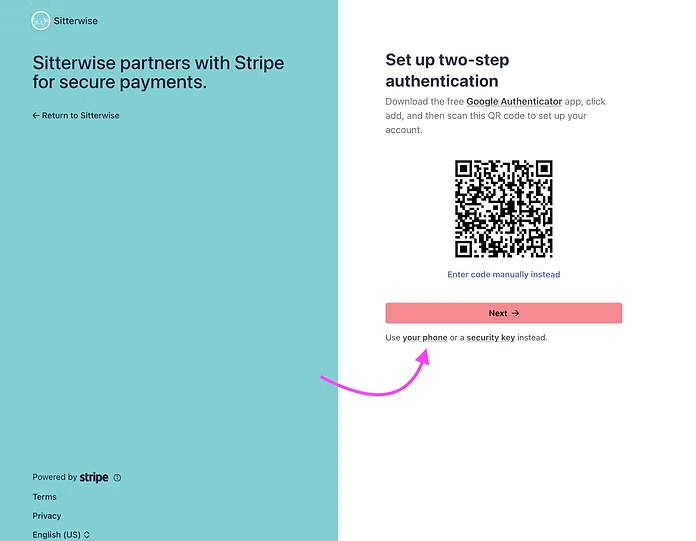
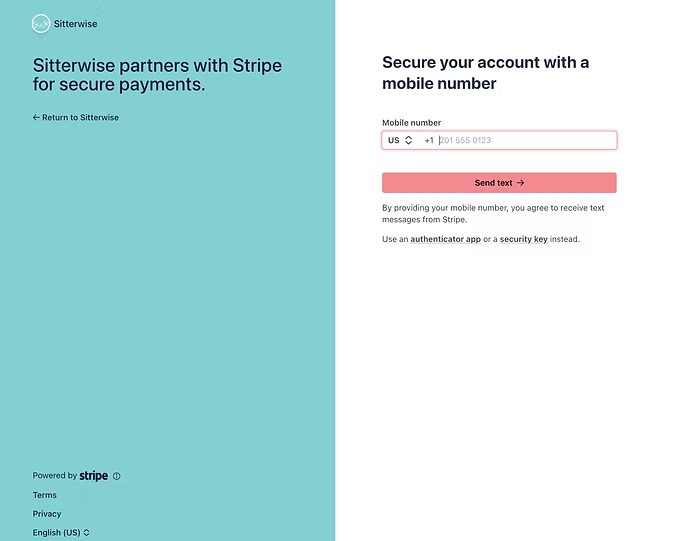
Set up two-step authentication. You can either scan the QR code, or you can click where it says use your phone and they will text you a security code to enter.
Enter United State for Business Location and Individual for type of business. You are setting this account up as an independent contractor for the payouts you receive through the app from private families.
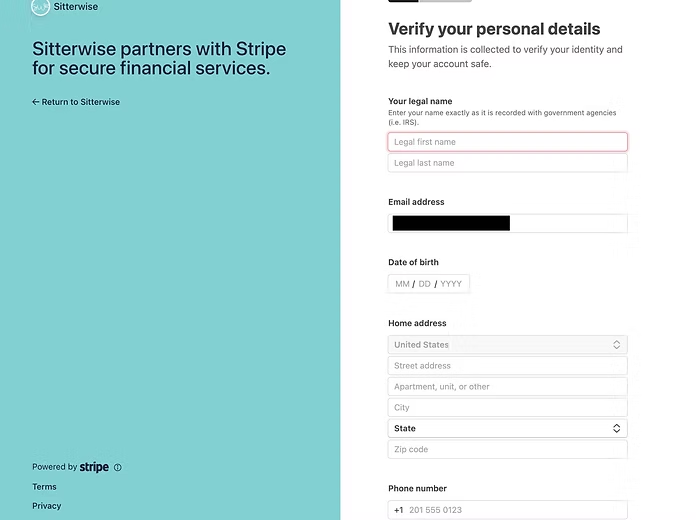
Verify your identity and enter your contact information. It will ask for your date of birth and last 4 digits of your social security number in case any tax documents need to be sent to you. Fill this section out completely and click continue.
Enter your “business” details. Remember, this is for the jobs you are paid for as an independent contractor (private families paid through the app), not the jobs you are paid for as an employee of Sitterwise through payroll (events, YMCA, church jobs, care.com). Enter the information exactly as you see it here.
Enter the bank account where you would like your payouts to go. You should also see an option to enter a debit card if you prefer that method instead.
Add “public” details. This section is a little misleading because your information won’t actually be seen by anyone. Our payout flow is set up so the family pays the full amount through our website, then the caregiver portion is paid out from that. The receipt the family receives will be our Sitterwise business receipt. They won’t see your personal information.
Review the information you entered and click the “agree and submit” button. You will then be taken back to your Sitterwise dashboard.
If your registration was successful, you will see this:
The Stripe Account ID will be filled out and Payments Enabled will say “Yes”. The button will also change to “Stripe Dashboard”. If you do NOT see this, you will need to click the pink button again and fill out any information you may have missed.
If your registration was NOT successful, you will see this when you go back to your Sitterwise dashboard. The account number might be there, but payments enabled will say “no” and the pink button will change to “Continue Stripe Registration.” If your dashboard looks like this, click the pink button again to complete your registration.