Get Paid: Finish Your OnPay Setup
Sitterwise uses OnPay for payroll. Your taxes are handled for you, and you’ll get a W-2 at tax time.
After you’re hired, OnPay will email you an invitation. Please complete your setup as soon as it comes in. It takes about 5 minutes.
Complete all 4 steps
Personal Information
Fill in your basic details.
Tax Withholding
Not sure what to enter? Ask your favorite AI assistant, or choose your filing status (like Single) with no other adjustments for now and update it later.
Direct Deposit
Don’t skip this one. Enter your bank account information so your pay goes straight to your account. Need to add it later? Here’s how.
Required Documents
Review and sign:
- I-9 (Employment Eligibility Verification)
- W-4 (Federal Tax Withholding)
- Overnight Care Agreement
- Employee Handbook Acknowledgment
Your setup isn’t complete until direct deposit is in and all documents are signed. If you stopped partway through, log back in and finish it.
How to add or change your direct deposit
Skipped it during setup, or switching banks? Here’s where to find it.
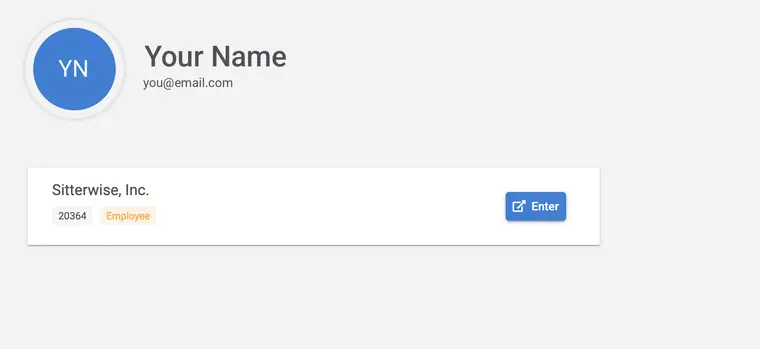
1. Log in and choose Sitterwise
Log in to OnPay. If you work for more than one company through OnPay, find Sitterwise, Inc. and click Enter.
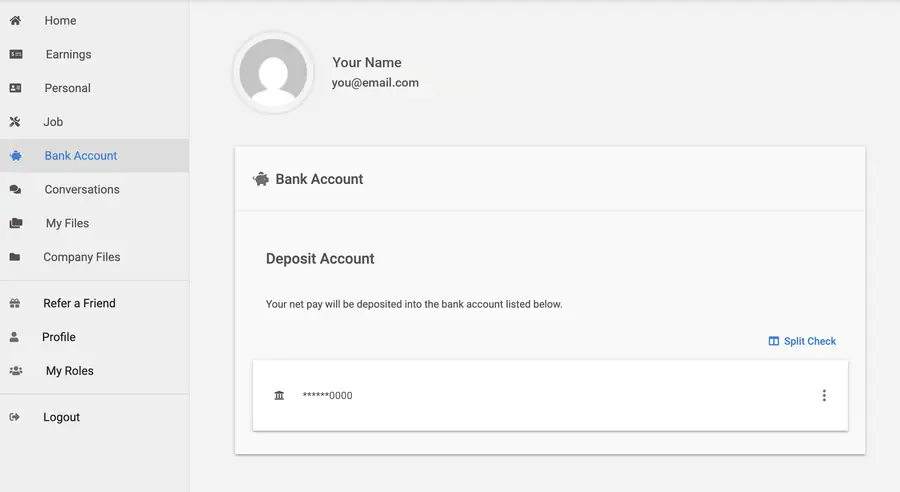
2. Open Bank Account
Click Bank Account in the left menu. Add your account under Deposit Account, or use the three-dot menu next to it to make changes.
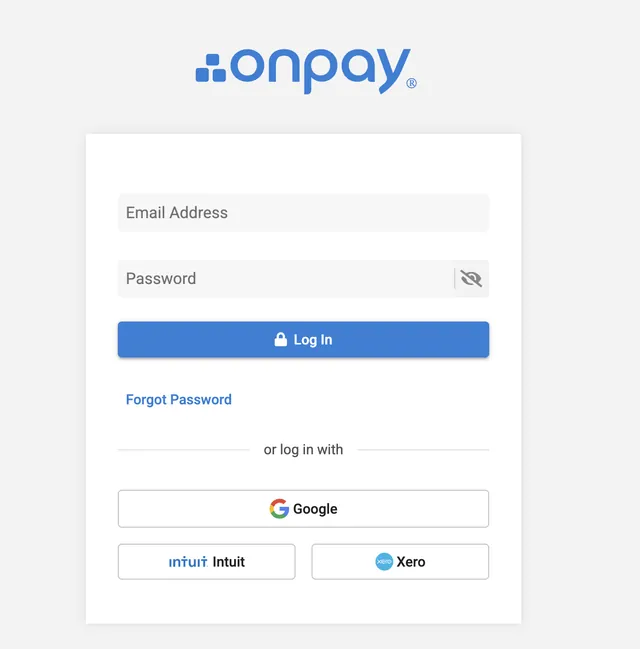
Log in to OnPay any time
Use the email address you applied with. OnPay is also where you can see your full pay history any time of year.
Log In to OnPay →Questions? Text us at (619) 663-4379 or email robyann@sitterwise.com