Caregiver Resources

Setting Up the Sitterwise App

Three quick steps: log in, set your availability, and turn on job texts. Questions? Text the office at (619) 663-4379.

01

Log In

On your phone, go to sitterwise.io/login. Your username is the email address you gave us.

Then turn on job alerts: text START to (619) 775-4330. That number is for automated job texts only. If the texts don’t come through, text the office at (619) 663-4379.
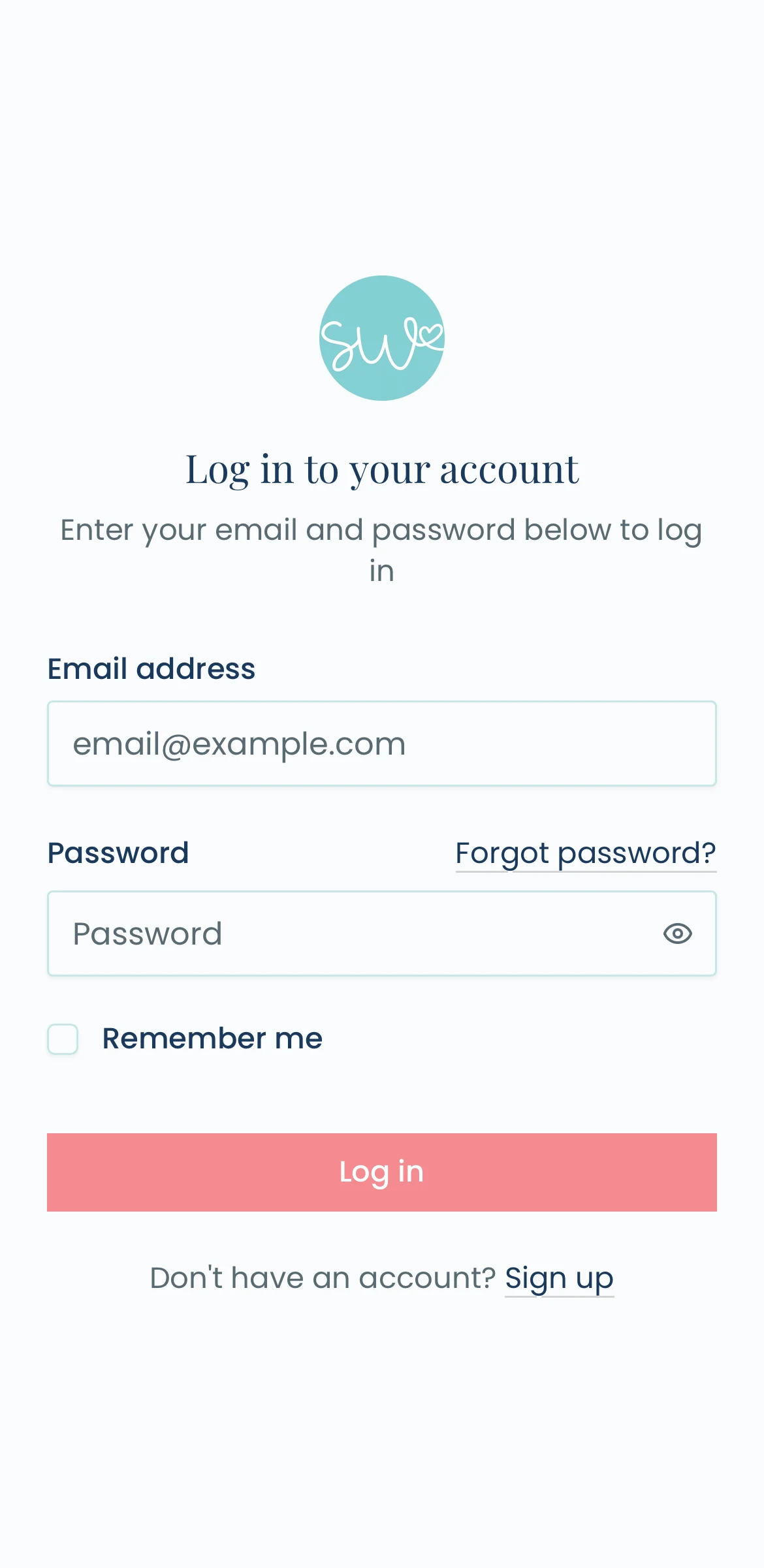
The first time you log in, tap Forgot password? We’ll email you a link to set your password, then you can log in.

02

Set Your Availability

Update your availability every week. Caregivers with up-to-date availability are the first ones we reach out to, so it’s your best chance at getting jobs.

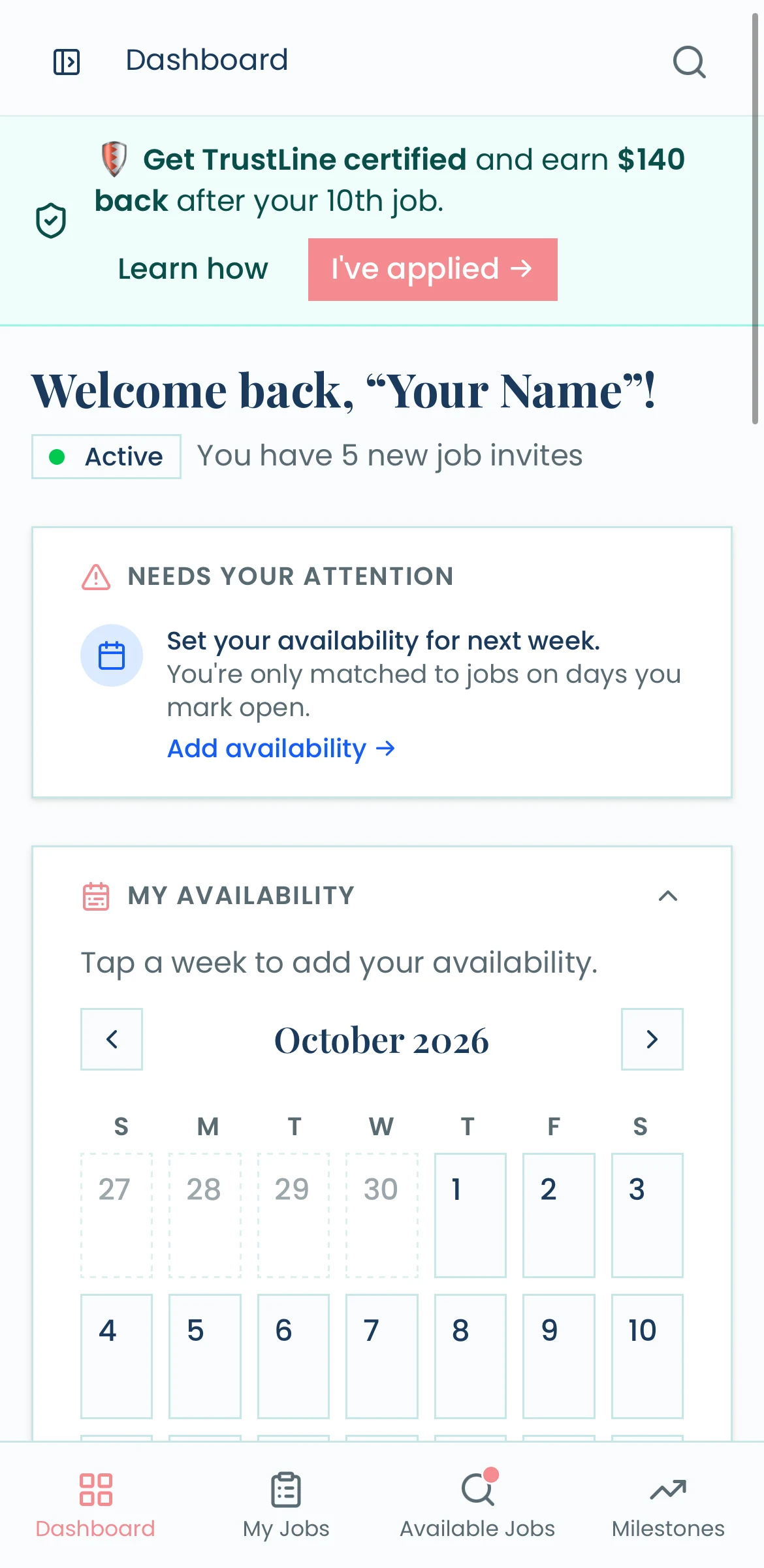
Your dashboard shows new job invites and anything that needs your attention, like setting next week’s availability.

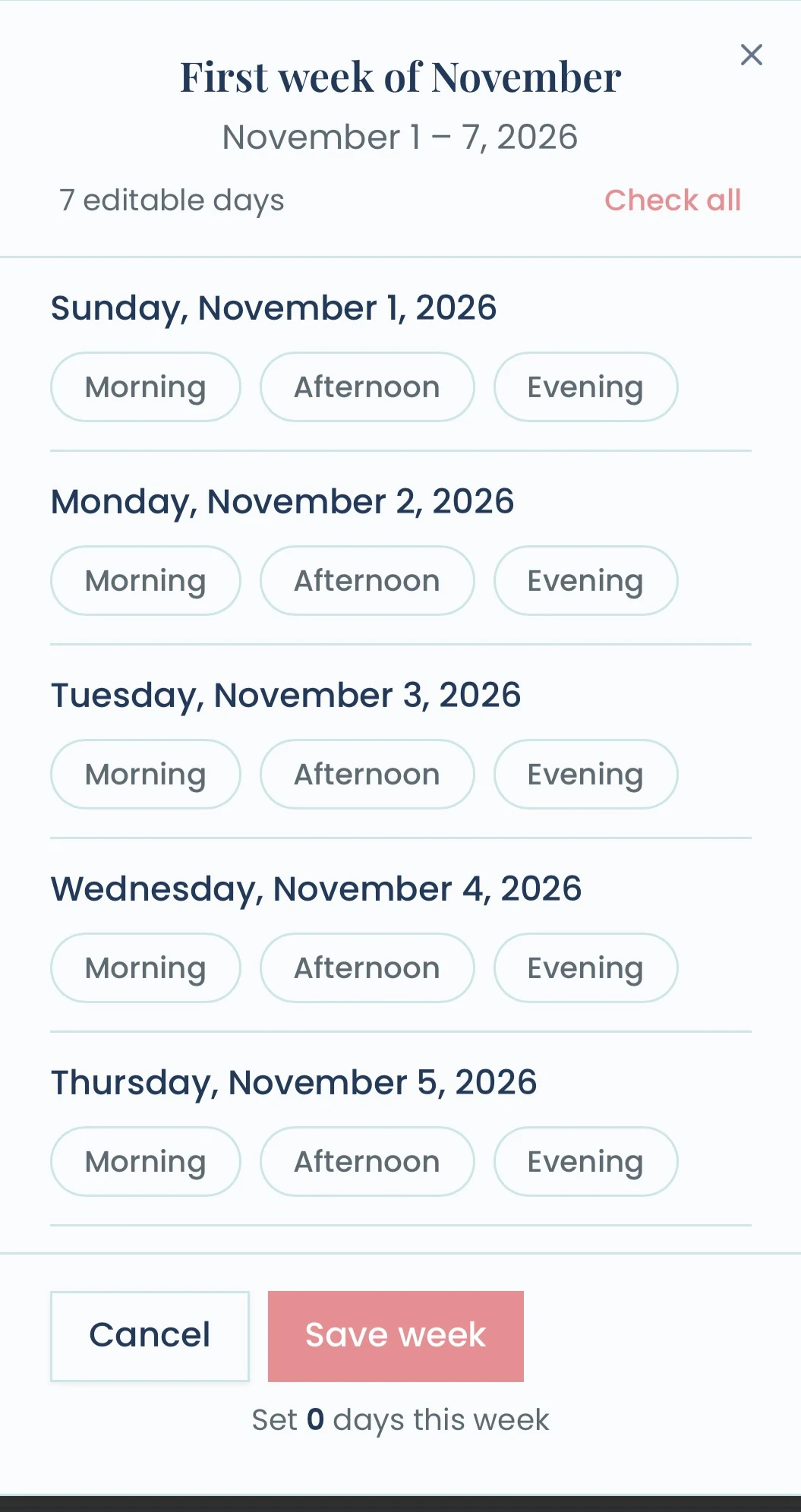
Under My Availability, tap a week to open it.

Pick Morning, Afternoon, or Evening for each day you’re free, then tap Save week.

03

Watch for Job Texts

New job alerts come by text from (619) 775-4330, so make sure the cell number in your profile is correct. If you’re not getting them, text the office at (619) 663-4379.
Once you accept a job, it shows up under Your Next Job on your dashboard.